Operation
Sleep screen settings
The touchscreen thermostats have a Sleep Mode setting at the thermostat that allows you to customize the screen information when Sensi goes idle.
Sensi Touch smart thermostat
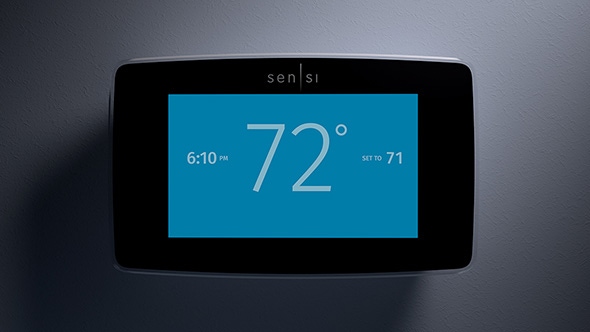
- On the thermostat , tap Menu.
- Tap Sleep Mode.
- Brightness: Choose between Off, Low, Medium or High to set the display brightness on Sleep Mode.
- Time to Sleep: Choose between 30 seconds, 1 minute or two minutes for how long it takes the screen to enter the Sleep Mode.
- Time of Day: Toggle whether you'd like to see the time on the sleep screen.
- Temperature Set Point: Toggle whether you'd like to see the set temperature on the sleep screen.
- Tap the arrow back to save your changes.
- You can also use the Preview option to see what it will look like with your current settings.
Sensi Touch 2 smart thermostat
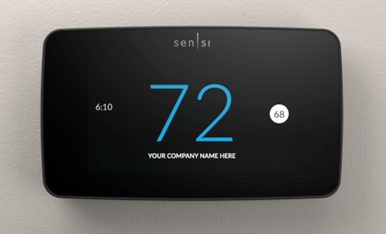
- On the thermostat, tap Menu.
- Tap Display Options.
- Tap Sleep Mode.
- Time to Sleep: Choose between 30 seconds, 1 minute or two minutes for how long it takes the screen to enter the Sleep Mode.
- Screen Brightness: Choose between Off, Low, Medium or High to set the display brightness on Sleep Mode.
- Display Time: Toggle whether you'd like to see the time on the sleep screen.
- Display Setpoint: Toggle whether you'd like to see the set temperature on the sleep screen.
- Tap the arrow back to save your changes.
- You can also use the Preview option to see what it will look like with your current settings.
Reach out to us
Our customer support is available 7 days a week.